Adding your first items
Adding one item rarely takes more than half a minute, because you don't type most of it.
Pick a category
Click add item and choose Music, Book, Film or Concert at the top of the form. The category decides which fields you get and where MyCultBox goes looking for the data.
Look up the title
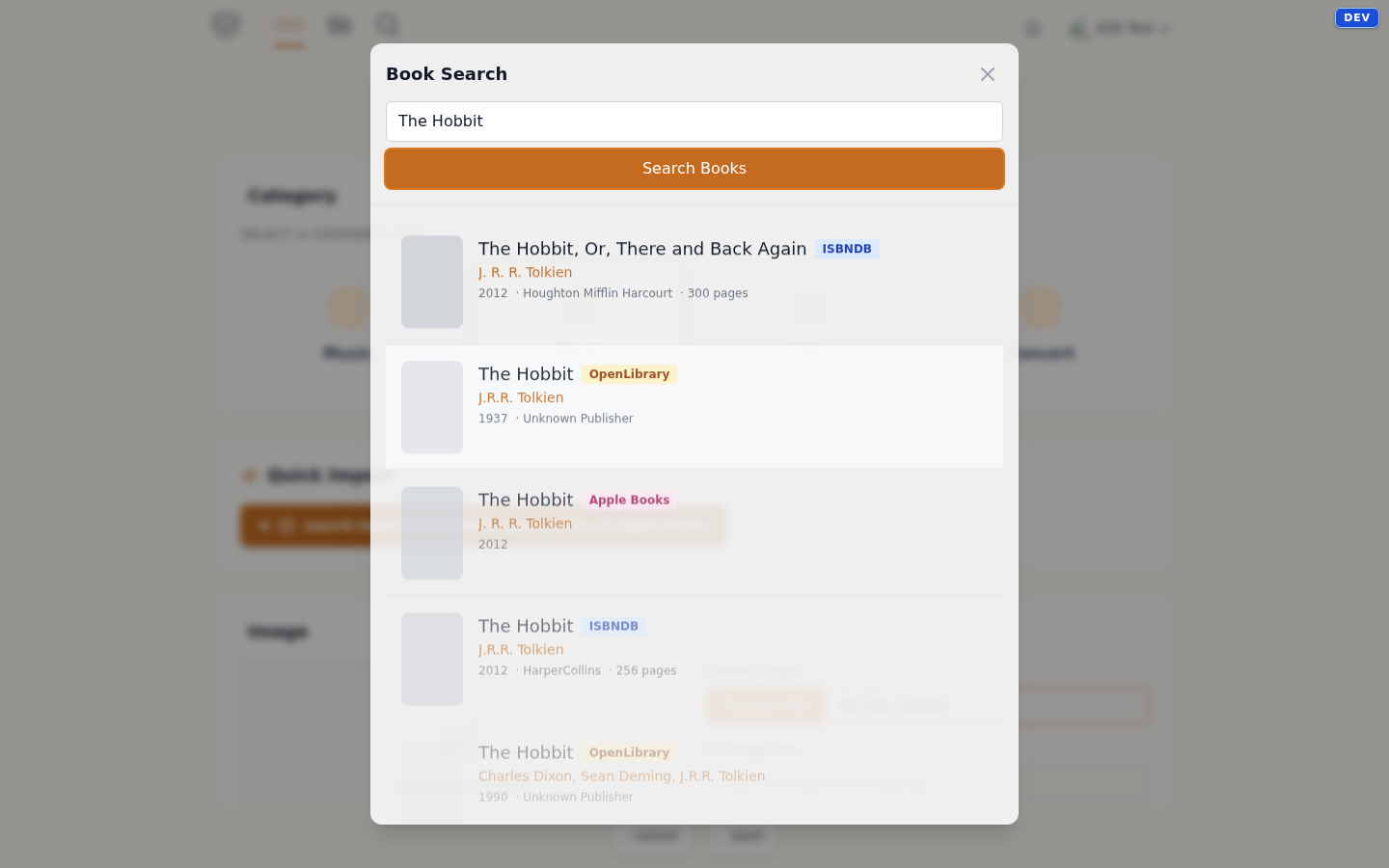
As soon as you've picked a category, a matching search panel appears:
- Books — search by title, author or ISBN across ISBNDB, Open Library and Apple Books.
- Films — search by film title across TMDB and Apple TV.
- Music — search by album and/or artist across Spotify, Apple Music, Discogs and MusicBrainz. You can also paste a link from any of those.
- Concerts — paste the URL of the event or ticket page and click analyze; MyCultBox reads the page and fills in the fields.
Pick the right result and the form fills itself: cover or poster, author or director, publisher, runtime, tracklist, genres. Anything that's missing, you type in yourself.
On the free plan you get 10 of those lookups a day. If you run out, you can still add the item by hand.
Add what's yours
Below the automatic data sits the rest of the form:
- When & where — when you read, saw or heard it, and in which place. If the date is in the future, MyCultBox marks the item as upcoming.
- Rating — 0 to 10, in half points.
- Personal notes — for the part only you need to read.
- Tags and companions — see Tags and companions.
Click save and you land on the item's page. That's where you do the rest: write a review, add photos, pull in the setlist from Setlist.fm on a concert, hit play on an album. Reviews can only be attached once the item has been saved.
Want to bring your whole history in at once? See Importing.